



GitHub spent decades building the world’s most important developer infrastructure. Then, in March 2024, they quietly dropped something that changes how you interact with that infrastructure every single day.
GitHub Copilot CLI went generally available on March 21, 2024, extending the same AI that powers your IDE suggestions directly into your terminal. Not as a gimmick. Not as a plugin you forget about. As a full, agentic assistant that understands your project, your Git history, your file structure, and can execute tasks on your behalf.
I’ve been tracking the evolution of AI coding tools for a while now, and Copilot CLI is one of those tools that sounds incremental but feels transformative once it’s running in your terminal. Think of it as the difference between having a smart autocomplete in your editor versus having an engineer sitting next to you who also happens to know every shell command ever written.
What Is GitHub Copilot CLI – And Why Does It Matter Now?
The story starts at GitHub Universe 2023. CEO Thomas Dohmke stood on stage and announced that GitHub was being “re-founded on Copilot.” That’s not marketing speak – it was a genuine architectural declaration. Copilot was no longer a code-completion plugin. It was becoming the brain of an entire developer platform.
Part of that vision was Copilot X – a sweeping plan to inject AI into every phase of development: your IDE, your PRs, your docs, your CLI. The CLI piece initially launched as a public preview on November 8, 2023. Then on March 21, 2024, it hit GA, opening access to all Copilot Individual, Business, and Enterprise subscribers.
But here’s what nobody’s asking: why does the terminal specifically matter? Because despite every visual IDE, every drag-and-drop deployment tool, and every browser-based dev environment, the terminal is still where the real work happens. grep, git, Docker, Kubernetes, CI/CD pipelines – it all runs through that black rectangle. And until now, that’s the one surface where AI has been absent.
The old gh copilot extension – a simpler predecessor – has been officially retired. The new GitHub Copilot CLI is faster, deeper, and agentic in a way the extension never was.
What GitHub Copilot CLI Can Actually Do
This isn’t just a command suggester. That would be underselling it drastically.
Copilot CLI operates in two modes: interactive and programmatic. In interactive mode, you type copilot in your terminal and enter a conversational session. Ask it to debug your failing tests, scaffold a new service, write a migration script, or explain a cryptic error. It responds with natural language and executable actions. In programmatic mode, copilot -p "your prompt" returns a direct output suitable for scripting.
Here’s what makes it different from a ChatGPT tab you keep open:
Contextual Awareness. Copilot CLI reads your current working directory, your Git history, your project structure, and even your shell environment. When you ask “why is my Docker build failing?”, it’s not working from an abstract understanding of Docker. It’s looking at your Dockerfile.
Agentic Execution. It doesn’t just suggest commands – it can run them (with your approval). Create files, modify code, execute builds, manage Git operations. A built-in permission system requires explicit approval before any file modifications or shell executions, which keeps you in control.
GitHub Ecosystem Integration. This is where it diverges from something like AirLLM’s local-first approach or standalone coding agents. Copilot CLI can manage pull requests, review diffs, create issues, and even push work to GitHub’s cloud-based Copilot agent via the /delegate command – which can open a draft PR on your behalf.
Specialized Agents. Three built-in agents handle different workloads: Explore (deep codebase analysis), Task (test execution and build management), and Plan (architectural implementation planning before any code is written).
| Feature | GitHub Copilot CLI | Traditional Shell |
|---|---|---|
| Natural language commands | ✅ | ❌ |
| Context-aware suggestions | ✅ | ❌ |
| Agentic GitHub integration | ✅ | ❌ |
| PR creation via terminal | ✅ | Partial (gh CLI) |
| Safe execution with approval | ✅ | ❌ |
| MCP server extensibility | ✅ | ❌ |
Slash Commands Worth Knowing:
/login– Authenticate with your GitHub account (required on first run)/add-dir PATH– Grant the CLI access to a specific directory/delegate– Push a task to GitHub’s cloud Copilot agent/compact– Summarize the conversation to save context window tokens/context– See your token usage at a glance/diff– Review changes in the current directory/resume– Resume a previous local or remote session/init– Initialize custom instructions for the repo (powerful for team standards)
The /compact and /context commands are details that matter. Context windows aren’t infinite, and Copilot CLI gives you visibility and control over that constraint – something most AI tools hide from you.
How to Install GitHub Copilot CLI (Step by Step)
This is where I want to be precise, because the old gh copilot extension method is retired. The new standalone CLI installs via npm. It’s simpler than it sounds.
Prerequisites
Before you install, confirm three things:
- Node.js v22 or later – Check with
node --version. If you’re below v22, update via nodejs.org or usingnvm install 22 && nvm use 22. - npm v10 or later – Comes with Node.js v22+ but verify with
npm --version. - An active GitHub Copilot subscription – Copilot Pro, Pro+, Business, or Enterprise. The CLI is included in all paid tiers. No separate purchase required. If you don’t have one, Copilot Pro starts at $10/month.
On Windows, you also need PowerShell v6+ for the CLI to run correctly.
Installation
Open your terminal. Run this single command:
npm install -g @github/copilot
That’s it. The @github/copilot package installs the CLI globally, making the copilot command available anywhere in your shell.
One quick note on permissions: If you hit an EACCES error during npm global install, it’s a permissions issue with your npm cache directory. Fix it with:
sudo chown -R $(whoami) $(npm config get prefix)/lib/node_modules
Then run the install command again.
First Launch and Authentication
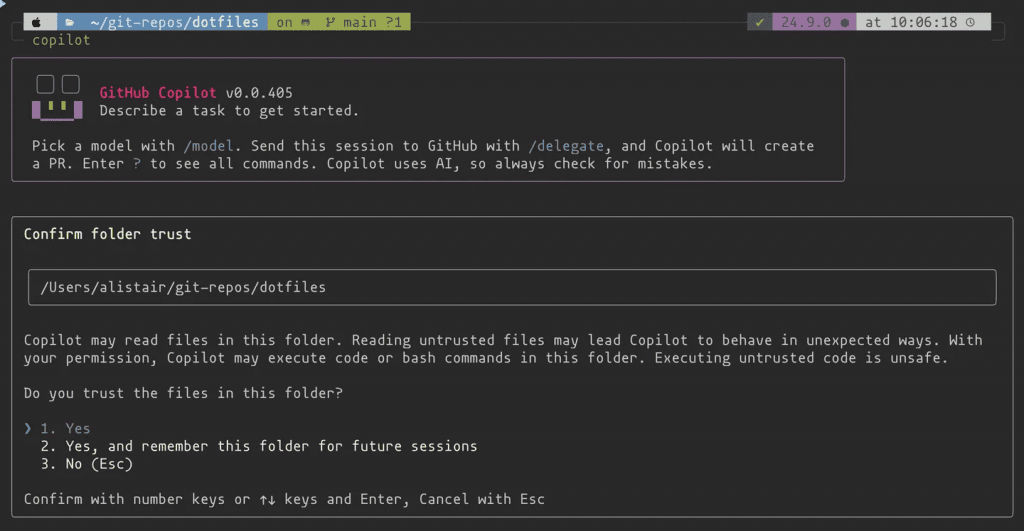
Once installed, launch the CLI:
copilot
On first run, you’ll be prompted to authenticate. Type:
/login
This opens a browser-based OAuth flow to verify your GitHub account and confirm your Copilot subscription. It takes about 30 seconds. After authentication, you’re dropped into an interactive session and ready to go.
Verify the Installation
Run a quick test to confirm everything is working:
copilot -p "List the files in the current directory and explain what each one might be for"
If Copilot analyzes your current directory and returns a structured response, you’re fully set up.
Optional: Install GitHub CLI Alongside
While no longer required, the GitHub CLI (gh) is worth having alongside Copilot CLI for managing repos, PRs, and auth tokens. Install it via:
brew install gh
sudo apt install gh
winget install --id GitHub.cli
Then authenticate:
gh auth login
The two tools complement each other – gh for GitHub operations, copilot for AI-assisted terminal work.
Real Developer Workflows Where This Shines
Let me give you three scenarios where the upgrade is immediate.
Debugging Failed CI/CD Pipelines. You’re staring at a failed GitHub Actions run. Instead of copy-pasting logs into ChatGPT, you run copilot in your project root and say: “My CI pipeline is failing. Check the recent logs and tell me what’s wrong.” It reads your workflow files, your recent git history, and gives you a diagnosis in context.
Unfamiliar Codebase Navigation. You’ve just inherited a 200K-line codebase. Traditional approach: read README, grep around, get lost. Copilot CLI approach: activate the Explore agent and ask “Give me the architecture overview of this codebase and map the main data flows.” It reasons through the entire project structure before responding.
Automated Git Workflows. This connects directly to the broader agentic AI movement we’ve been tracking – GitHub Copilot CLI can take your natural language description of a feature request and turn it into a structured implementation plan, write the code, and even create a draft PR via /delegate. The full loop, without leaving your terminal.
The Constraints You Should Know
Copilot CLI isn’t magic. A few hard realities:
Node.js 22 is not optional. If your environment is pinned to an older Node version for other tools, you may hit conflicts. Use nvm to manage multiple Node versions cleanly.
Subscription required, full stop. There’s no free tier for Copilot CLI. The base Copilot Pro plan at $10/month is the entry point. This limits adoption compared to something like open-source agents running locally, which cost nothing after setup.
Context window limits apply. Long sessions accumulate tokens quickly. Use /compact proactively, and use /context to monitor your usage. Copilot CLI’s transparency here is actually better than most tools – but the limit still exists.
Command execution requires approval. Every tool call that modifies your system needs your explicit ok. This is a safety feature, not a bug – but if you’re used to fully autonomous agents, the approval flow takes getting used to.
The /delegate command is where the constraint map gets interesting: once you delegate a task, it runs on GitHub infrastructure with its own permissions scope. Understand what you’re delegating before you do it.
The Bottom Line
GitHub Copilot CLI completing the loop between AI and the terminal is the most significant developer workflow change since GitHub Actions automated CI/CD. It’s not just about convenience. It’s about eliminating the cognitive tax of translating intention into shell commands, and giving developers a collaborator that understands the full context of what they’re building.
The install is four steps and under two minutes: confirm Node.js 22+, run npm install -g @github/copilot, launch with copilot, authenticate with /login. That’s the whole thing.
What excites me isn’t just the current feature set – it’s the trajectory. With MCP server integration, you can extend Copilot CLI with domain-specific tools and data sources. With /delegate, human-in-the-loop agentic coding is live today. This is what the agentic AI stack looks like when it ships to 100 million developers.
FAQ
Do I need GitHub CLI (gh) installed to use GitHub Copilot CLI?
No. The new standalone GitHub Copilot CLI installs independently via npm install -g @github/copilot and doesn’t require the old gh copilot extension. GitHub CLI (gh) is recommended as a companion tool but is no longer a prerequisite.
Which GitHub Copilot plans include access to Copilot CLI?
All paid GitHub Copilot tiers include access to the CLI: Copilot Pro ($10/month), Copilot Pro+ ($19/month), Copilot Business ($19/user/month), and Copilot Enterprise ($39/user/month). There is no free tier for the CLI.
What’s the difference between interactive mode and programmatic mode?
Interactive mode starts when you run copilot in your terminal – it opens a conversational session where you can iterate with the AI back and forth. Programmatic mode (copilot -p "your prompt") is for single-shot commands and scripting, where you pass a prompt directly and get a response without entering a session.
Can GitHub Copilot CLI run code and modify files on my machine?
Yes, but with explicit approval. Every action that would modify files or execute shell commands requires you to confirm it first. This is a deliberate safety design. The --allow-all-tools flag can auto-approve tool usage in programmatic mode, but should only be used in controlled or sandboxed environments.
What is the /delegate command?
/delegate pushes your current task to GitHub’s cloud-hosted Copilot coding agent. The agent works on the task on GitHub infrastructure and typically creates a draft pull request with its changes. You then review the PR and merge if satisfied. It’s GitHub’s bridge between your local terminal session and autonomous cloud-based development.
Is there a way to customize Copilot CLI for my project?
Yes. Run /init in your project directory to create a custom instructions file. This lets you define project-specific context, coding standards, and preferences that Copilot CLI will apply in every session within that repository.